Kinefinity VISTA firmware updates, official downloads and practical checks for your camera. This guide covers VISTA; MAVO Edge, MAVO mark2 and EAGLE viewfinders have their own firmware guides.
Last checked: 24 September 2026. Kinefinity currently lists VISTA 10.1.44, released on 10 September 2026.
What changed · Updating your VISTA · Checks before a shoot · Questions
VISTA firmware 10.1: changes that matter on set
- Recording: 6K Open Gate and oversampled 4K Open Gate reach 39fps. New modes include S35 4K at 92fps, 4K Wide at 120fps and full-frame oversampled 4K 50p in ProRes 422 HQ.
- Audio: UAC microphone support, including DJI Mic Mini. Automatic input selection prioritises UAC, then 3.5mm, then the internal microphone.
- Media: support for GPT-partitioned 4TB and 8TB CFexpress cards, plus recording and recovery improvements.
- Monitoring and metadata: more HDMI display options, improved touchscreen behaviour, and lens and anamorphic metadata in MOV files.
See the official VISTA 10.1 release notes and download for the complete changes and installation requirements. Frame-rate limits depend on the selected sensor area, aspect ratio and codec; our VISTA product page has a dedicated Codecs & FPS tab.
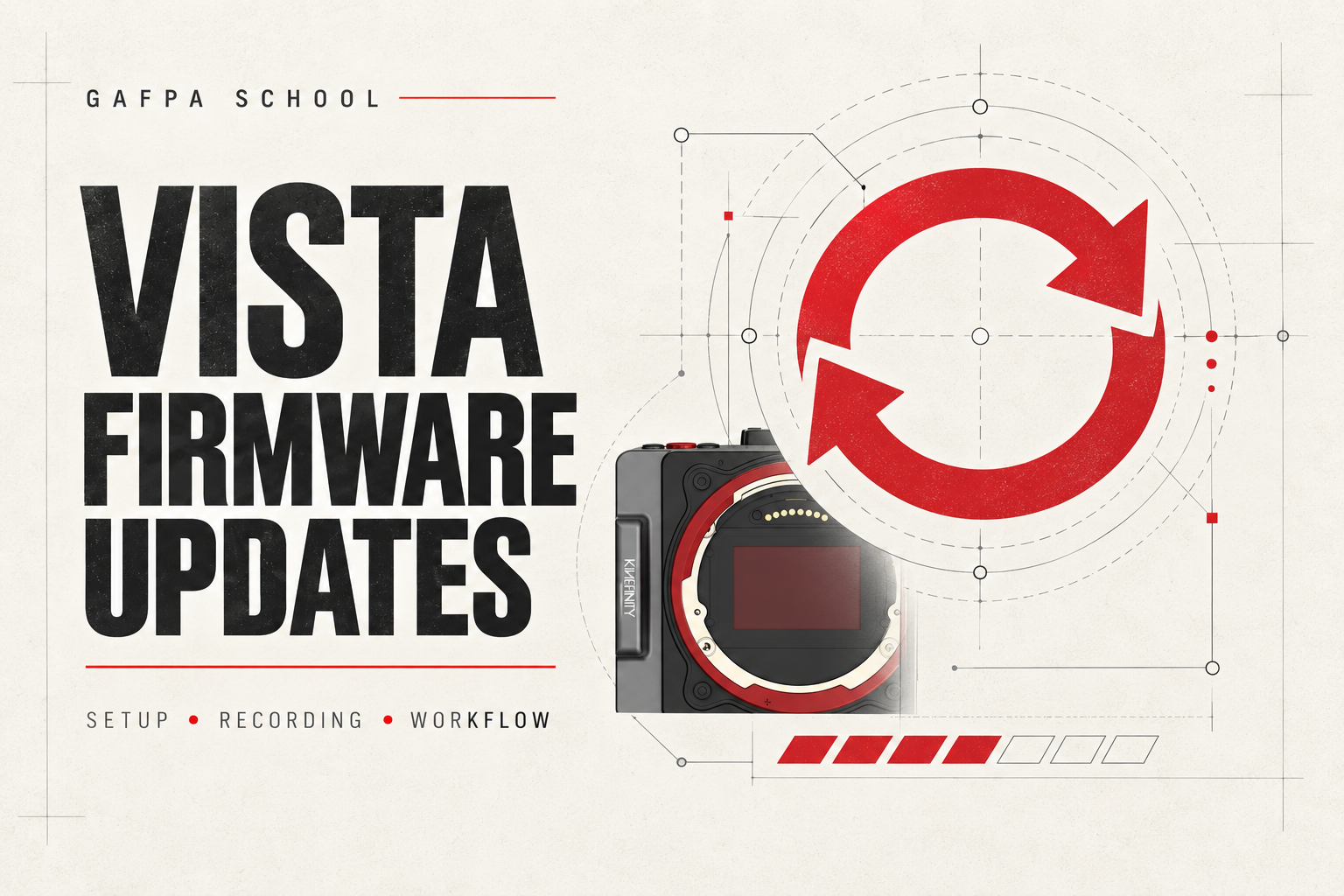
How to update Kinefinity VISTA firmware
Kinefinity allows a direct update from the current firmware using a USB flash drive connected to USB-C1. Follow the instructions supplied with the official release.
After updating, complete both calibrations: Black Balancing under Menu → System (approximately three minutes), followed by Level Calibration. These are part of the update procedure.
Our checklist before returning the camera to a shoot
Set aside time to update and test the camera before a production day. Back up your footage, make a note of your shooting settings and use a dependable power source. Check the exact model and installed version before selecting a download.
- Confirm the new version in the camera menu.
- Check your project frame rate, sensor area, codec, shutter, white balance and monitoring LUT.
- Record and play back a short clip with the card, lens or adapter and microphone you will use.
- Listen to the recorded audio and check HDMI monitoring and timecode if your setup uses them.
- Open a test clip in your editing software and check image framing, sound and metadata.
VISTA firmware questions
Does a firmware announcement mean the feature is available?
Use the version offered on Kinefinity’s official firmware page as the starting point. A demonstration or announced feature is not evidence that it is included in your installed release.
Can I use MAVO or EAGLE firmware on VISTA?
No. Match the download to VISTA. Use our separate MAVO Edge and MAVO mark2 firmware guide or EAGLE HDMI and SDI firmware guide for those products.
Where can I see VISTA footage and recording specifications?
The Kinefinity VISTA page combines specifications, resolution and frame-rate tables, reviews and our film SLEEP AWAKE DREAM, shot entirely on VISTA.
Need help choosing the correct update? Contact Gafpa Gear for Kinefinity support and include your camera model, current firmware version and a description of the issue.